
Install the server from scratch
Your VPS has been set up with the operating system that you selected at checkout.
However, if you want a different operating system or simply want to perform a fresh installation, we provide an easy way to do so from your FlokiNET account. You can deploy a new Linux distribution in minutes.
There are two ways to perform a reinstallation:
Using the Reinstallation function and an OS template (everything happens under the hood, making it the easiest option):
- Navigate to the Product Details page in your FlokiNET account;
- Scroll down to the Additional Tools tab and click the Reinstallation button;

- Find the preferred operating system in the OS Templates list;

- Select the preferred distribution, choose a new password, and click Confirm;

- Note: This new password will be used with the same username provided during the initial order.
The Product Details page will display a message while the installation is in progress and will return to normal once complete.
Using an ISO image:
- Navigate to the Product Details page in your FlokiNET account;
- Scroll down to the Information tab and click the Edit button (pencil shape);

- Select an ISO from the provided list, choose the boot order (Boot Device 1: CD-ROM -> Boot Device 2: Disk ), then confirm.

- Your VPS is now mounted with the selected image. On the Product Details page of your VPS, reboot the server;
- After rebooting, open the noVNC console to perform the installation steps;

- Note: During installation, we recommend the following:
- Choose the OpenSSH automatic configuration.
- DNS nameservers:
9.9.9.9or8.8.8.8for example. - Create a strong password.
- For network configuration, follow our article here .
- Note: During installation, we recommend the following:
- After installation is complete, unmount the ISO and change the boot order;
- In the new Edit Server window, choose None in the "ISO Image" field;
- Next, set the boot devices in the following order:
- Boot Device 1 = Disk, Boot Device 2 = None, Boot Device 3 = None. Then, press Confirm;
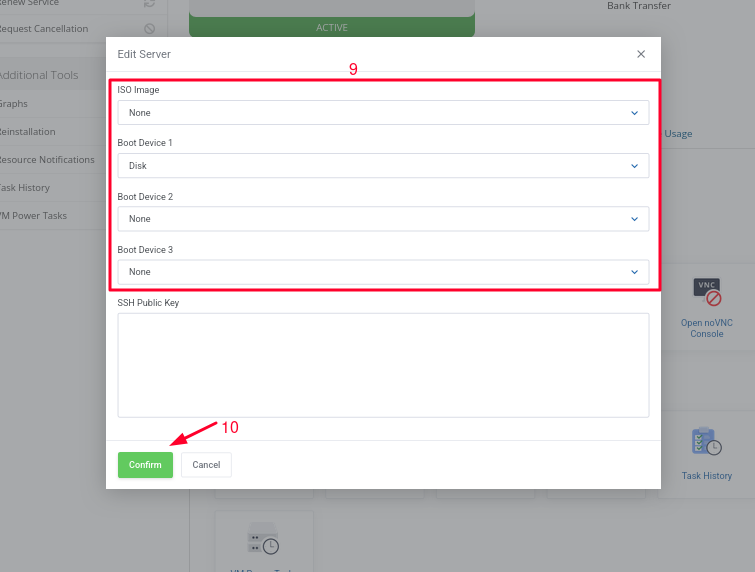
- Boot Device 1 = Disk, Boot Device 2 = None, Boot Device 3 = None. Then, press Confirm;
If you cannot find the desired operating system image in the list, open a support ticket requesting it.
Please note that we do not accept any operating systems related to penetration testing, such as Kali Linux.
