
This guide will help you understand the basics of this service and show you how to access your new virtual server for the first time.
ℹ️ Note that our VPS products are not managed services, meaning you are responsible for configuring, installing and maintaining the machine after deployment
Your VPS details
Once the order has been paid for and the virtual server has been provisioned, you will find it listed in your FlokiNET account Client Area > My Products & Services > Product Details 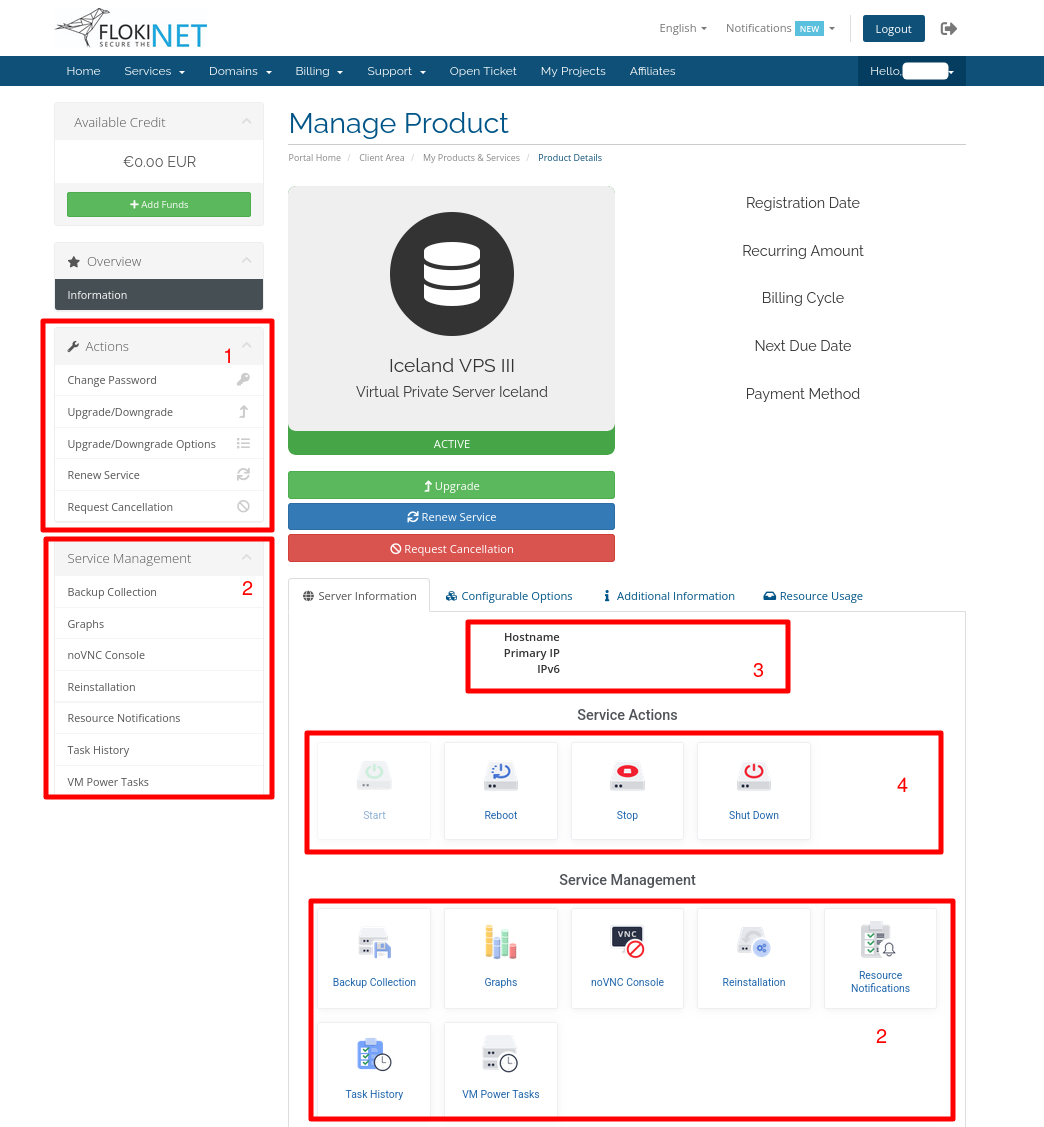
In this interface, you can see:
- Actions Menu: here you can find the functions to change the password for your created username, upgrading the VPS, or requesting an extension/cancellation
- Service Management: options to restore a backup of your virtual machine, reinstall it or access the noVNC console for troubleshooting
- Access details: your server's main IPv4 address and IPv6 range assigned, the hostname (service name) as well as any extra IPs (if bought as an add-on)
- Server actions: this panel allows you to control the server.
ℹ️ This section is important when performing a Full Power Cycle for the VPS. First, you need to Stop the machine, and then Start it back up again. This action should be performed after an upgrade to allow the OS to recognize the changes in resources.
On this page, you can scroll down to find the Information tab.
Here, you can view various stats for your server and use the Edit button (shaped like a pencil) to manage the boot order and SSH keys.
Connecting to your VPS (SSH Access)
When ordering your VPS, there are two main ways to manage access security:
Provide an SSH public key at checkout:
- In this case, password login is disabled for security reasons
- You must connect using your corresponding private key
If you did NOT provide an SSH public key
- You should be able to log in using the credentials (username and password) provided during checkout with your preferred client software (ex. PuTTY on Windows) or via a terminal session:
ssh username@your_server_ip
You can update your access at any time by adding or replacing an SSH public key via the control panel in the Client Area, as described in our guide on:
How to add/replace SSH public keys for your VPS
Access via Web Console (noVNC)
If you are unable to connect via SSH (for example, due to internal firewall misconfiguration), you can use the out-of-band management console
What is that?
- A browser-based console
- Does not rely on SSH
- Provides direct access to the VPS, as if physically connected
- Can be access from the Client Area > Service Management > noVNC using the credentials provided with the initial VPS order (username as password)
ℹ️ The noVNC console should only be used for troubleshooting, for example if SSH is not working or if you have locked yourself out of the server. It should not be used for day-to-day administrative tasks
Need more help?
If you are still having trouble accessing your VPS, please open a support ticket and we will be happy to help.
